> ## Documentation Index
> Fetch the complete documentation index at: https://tyk-docs-goja-inline-mintlify.mintlify.site/llms.txt
> Use this file to discover all available pages before exploring further.
# Configure Custom Domains in Tyk Cloud
> Learn how to set up custom domains for Tyk Cloud Control Planes and Cloud Data Planes.
## Introduction
You can set up Tyk Cloud to use a custom domain. Using custom domains is available on our free trial and all our paid [plans](https://tyk.io/price-comparison/). You can use a custom domain for both your **Control Planes** and **Cloud Data Planes**.
**note**
Wild cards are not supported by Tyk Cloud in custom domain certificates
## Custom Domains with Control Planes
* Currently, you can only use **one custom domain** per Control Plane deployment.
* The custom domain in this case ties to a **Tyk Developer Portal**. Please set up a **CNAME DNS** record such that it points to the "Portal" ingress as displayed on your Control Plane deployment page.
## Custom Domains with Cloud Data Planes
You can set multiple custom domains on a Cloud Data Plane. In this instance please set up your CNAME DNS records such that they point to the only ingress displayed on your Cloud Data Plane deployment page.
Note: While you can set multiple custom domains for a Cloud Data Plane, a single custom domain cannot be used for multiple Cloud Data Planes.
## How to set up a Custom Domain
In this example we are going to set up a custom domain called `Cloud Data Plane.corp.com` for a Cloud Data Plane deployment.
1. Create a CNAME DNS record `edge.corp.com` that points to your Cloud Data Plane ingress (e.g. `something-something.aws-euw2.cloud-ara.tyk.io`).
2. From your Cloud Data Plane deployment, select **Edit** from the Status drop-down.
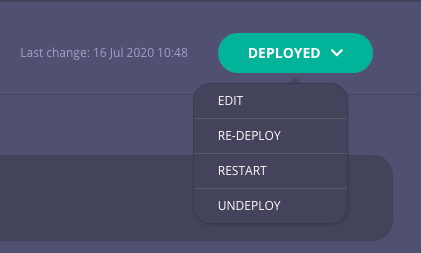 3. Enter `edge.corp.com` in the Custom Domains field.
 4. Click **Save and Re-deploy**.
 ## How our Custom Domain functionality works
When you point your custom domain to your deployment, we use Let's Encrypt's **HTTP01 ACME** challenge type, which verifies ownership by accessing your custom CNAME on your Control Plane or Cloud Data Plane deployment. For example - `something-something.aws-euw2.cloud-ara.tyk.io` above.
## How our Custom Domain functionality works
When you point your custom domain to your deployment, we use Let's Encrypt's **HTTP01 ACME** challenge type, which verifies ownership by accessing your custom CNAME on your Control Plane or Cloud Data Plane deployment. For example - `something-something.aws-euw2.cloud-ara.tyk.io` above.